
Free · runs in your browser

Color Splash Video

Keep the red dress, the yellow taxi or the blue door, and let everything else fall to grey. Pick the colour band, check its edges and export at full size.

Drop a video to colour gradeChoose a video to grade

Or choose one from your computer. Try looks on your own footage before you save anything.Pick a clip from your photos or files. It stays on your phone.

Works with MP4MOVWebMMKVand more

Graded on your device. Your video is never uploaded.

  1. 1Choose
  2. 2Grade
  3. 3Download

To make a color splash video, open your clip above: this page starts on the Red Splash look, which keeps reds and turns every other colour grey. To keep a different colour, open Pro tools (P), go to the HSL tab, choose the band you want (Orange, Yellow, Green, Aqua, Blue, Purple or Magenta) and switch on Keep only this colour. The Colour splash category in All looks has more ready-made versions to try.

Selective colour, as it is also called, works best when the colour you keep belongs to one subject and nothing else in the shot. The tool chooses pixels by hue, not by outline, so a red bus in the background survives along with the red coat in front. The sections below cover choosing a clip that suits the effect and keeping the edges steady. For a fully grey version, see black and white video.
How to keep one colour in a video

  1. Open your clip

    Choose Select video or drop the file on the tool. Red Splash is applied right away, so anything red stays in colour.

  2. Choose the colour to keep

    For another colour, press P for Pro tools, open HSL, select the band and turn on Keep only this colour. Every other band goes grey.

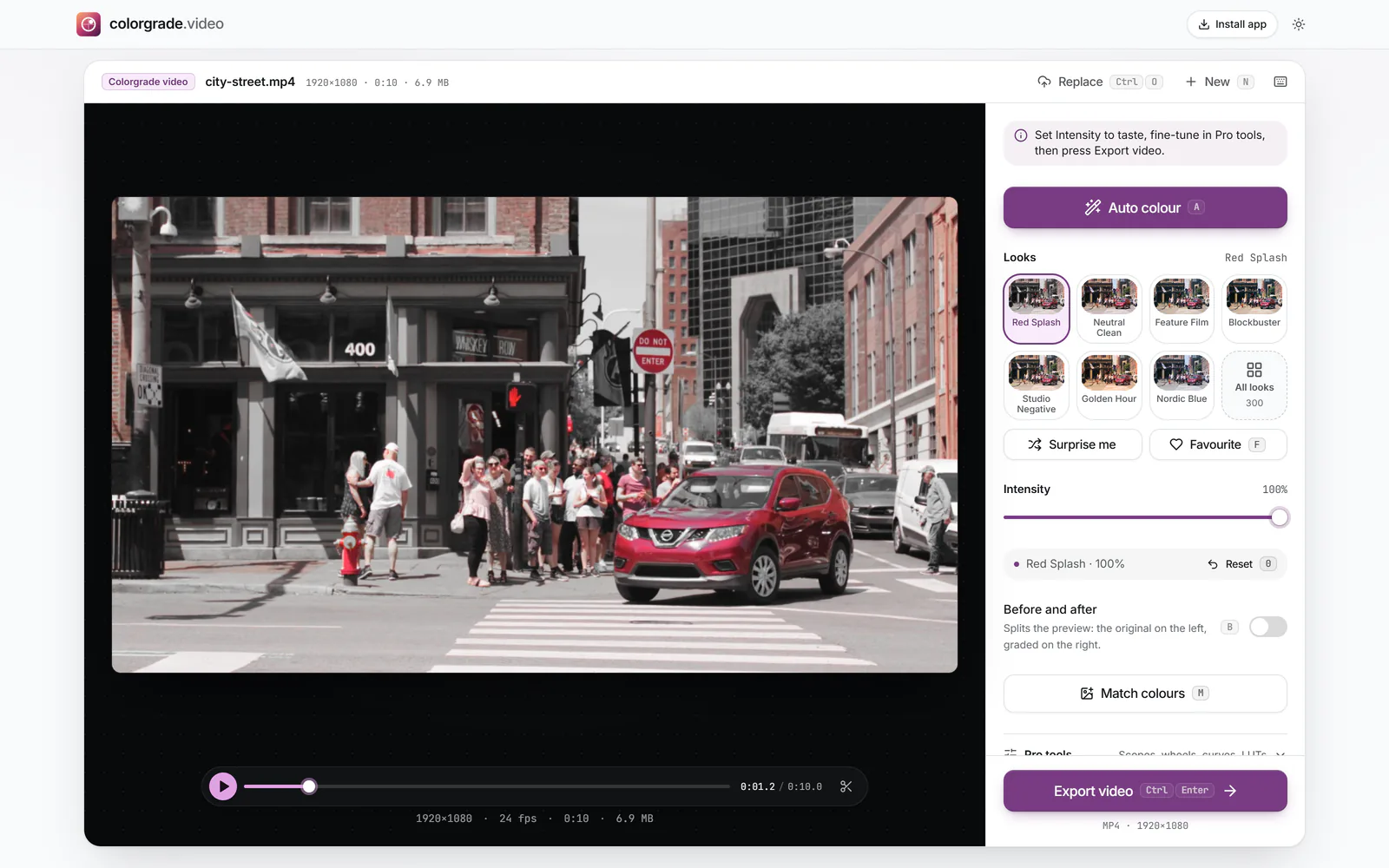
    The street clip with the Red Splash look: everything is grey except the red car, the fire hydrant and the red traffic signs, with Red Splash selected in Looks at 100% (enlarge image)

    Red Splash keeps the reds and turns everything else grey.

  3. Make the kept colour count

    With the band still selected, raise Saturation so the colour stands out against the grey, adjust Luminance to taste, and nudge Hue if, say, an orange-ish red should read as a cleaner red.

  4. Check the edges as it plays

    Turn on Before and after (B) and play the clip. Look at the outline of the coloured subject and at any faces: these are where stray colour shows first.

  5. Export

    Select Export video and then Download video. The sound is kept unless you switch off Keep sound in Export settings.

How the effect decides what stays in colour

Every pixel has a hue, its position on the colour wheel. Keep only this colour leaves the pixels inside the chosen band as they are and turns the rest grey. Because the wheel is split into eight bands, each band is a generous slice: Red takes in crimson, scarlet and the pinker reds, while Yellow catches lemon and gold.

Pixels with little saturation are the tricky ones. A faded or greyish colour has a weak, unstable hue, and tiny changes in noise from one frame to the next can tip it in or out of the band. That is why vivid subjects make the best splash videos and pastel ones tend to shimmer.

Which colour to keep

  • Red: the classic, and the most striking. Skin sits close by in red and orange, so faces may keep a faint warm tint.
  • Yellow: taxis, raincoats, sunflowers, road markings. Usually clean, as yellow is rare in city scenery.
  • Blue: doors, umbrellas, a swimming pool. Avoid it if the sky is in shot, unless you want the sky kept too.
  • Green: tricky outdoors, where grass and trees share the band, but effective indoors on a single green object.

Why colour flickers at the edges

Most video stores colour more coarsely than detail. In the common 4:2:0 format, a single colour sample is shared by a block of four pixels, so the colour boundary of a subject is softer than its outline. When everything outside the band turns grey, that softness can appear as a thin rim of colour on the background or a grey nibble out of the subject.

  • Compression adds blocky colour noise, especially in fast motion, and the band edge follows it.
  • Motion blur mixes the subject’s colour with the background for a frame or two.
  • Changing light shifts a hue slightly as a subject turns or walks into shade.
  • Automatic white balance on the camera can drift during a shot, moving the whole picture’s hues a little.

The cures are mostly at the shooting stage: a saturated subject, good even light, locked white balance if your camera allows it, and the highest quality setting it offers. In the tool, a higher band Saturation makes the kept colour commit more firmly. There are no masks or object tracking, so a stray patch elsewhere in the frame can’t be painted out here.

Keeping more than one colour

Keep only this colour keeps a single band. For two, leave it switched off and instead drag Saturation all the way down in each band you want grey, leaving the two you want untouched. Red and yellow together make a lively combination; blue and orange echo the teal and orange palette in a single bold step.

The effect applies to the whole clip you export. To use it on just one moment, trim to that section with the scissors button or I and O, export it, and place it in your edit. If the kept colour itself is the wrong shade, the change a colour tool explains how hue shifts work.

Colour splash questions

How do I make a black and white video with one colour?

Open the video on this page. Reds are kept straight away by the Red Splash look; for another colour, open HSL in Pro tools, pick that band and switch on Keep only this colour. Then select Export video.

What is selective colour?

Another name for colour splash: a picture where most of the frame is black and white and one colour is left in. It draws the eye straight to the subject wearing or holding that colour.

Can I keep more than one colour?

Yes, by hand. Leave Keep only this colour off and turn Saturation down to the minimum in every band except the ones you want to keep.

Why does the colour flicker at the edges?

Video stores colour at a lower resolution than detail, and compression, motion blur and shifting light all wobble the hue near edges. Vivid subjects in steady light give the cleanest result; raising the band’s Saturation helps the kept colour hold.

Why do faces keep a bit of colour?

Skin tones fall in the red and orange part of the wheel. If you keep Red, pinker skin can hold on to some warmth. Pick a different band, or accept it as part of the look.

Can I keep the colour on one object only, not others of the same colour?

Not here. The selection is by hue across the whole frame, without masks or tracking. Frame the shot so the subject is the only thing of that colour, or use an editor with masks.

Is it free and private?

Yes. There is no watermark or account, and the video is processed by your browser on your own device without being uploaded.